
No Semantic Structural Tags, how to fix
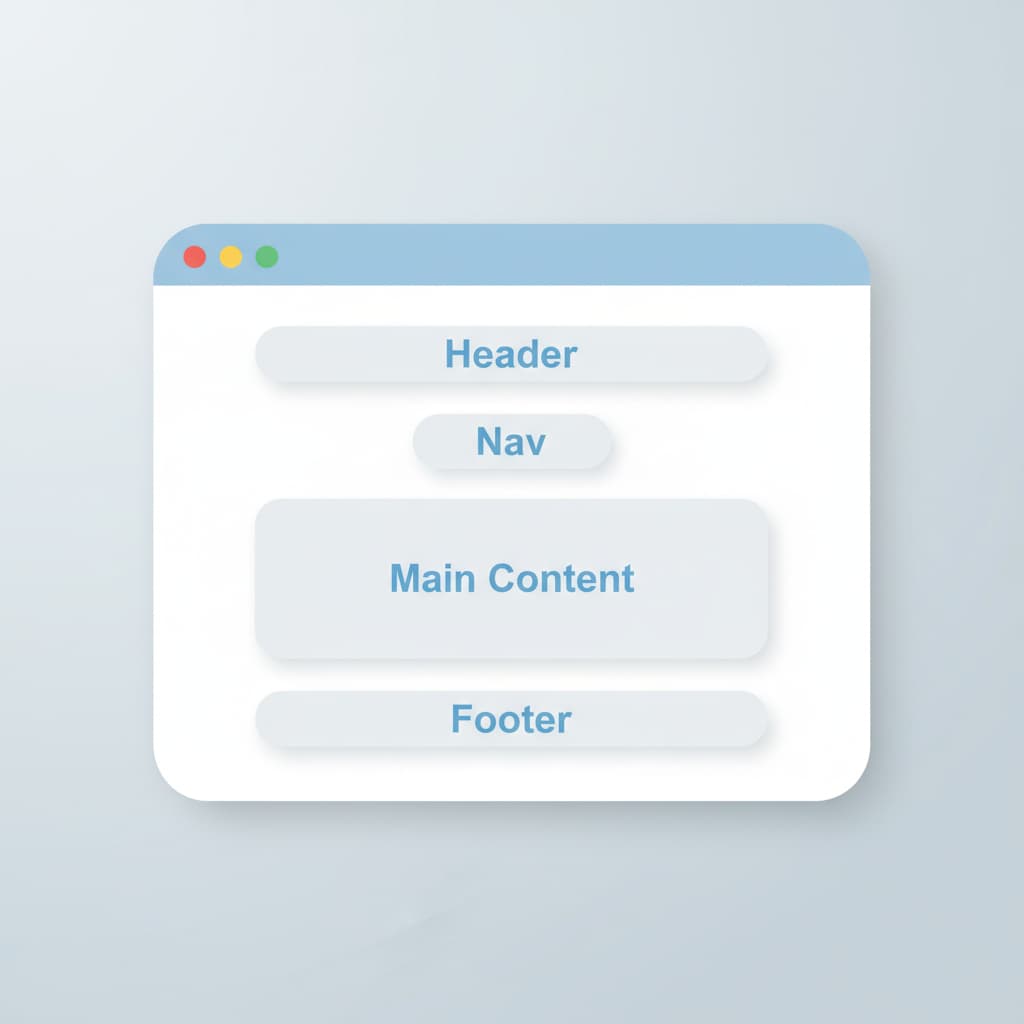
Semantic HTML: turning div soup into clean structure When running a performance or SEO audit, some WordPress sites built with […]
Semantic HTML: turning div soup into clean structure
When running a performance or SEO audit, some WordPress sites built with Elementor show the warning: “No semantic structural tags (main, header, footer, nav) found.” This usually means the visible layout is built entirely from generic <div> elements instead of semantic HTML5 tags like <header>, <main>, <footer>, and <nav>, which define the structure and meaning of each section of the page.
Semantic tags help search engines and assistive technologies understand the hierarchy of your content, making it easier for crawlers and screen readers to identify where the header, navigation, main content, and footer begin and end. Having a No Semantic Structural Tags message on your page still renders the page, but tools like Lighthouse or accessibility checkers may flag it as less accessible and less well structured.
What it means in plain terms
- Your site is readable, but not “well labeled” for Google and for people using screen readers.
- Fixing these labels (header, main, footer, nav) makes your site easier for robots and tools to understand
Why you should care about good Semantic Structural Tags
- Search engines: Clear labels can help Google understand your pages more easily, which can support better SEO over time.
- Accessibility: People who use screen readers can jump straight to the menu, main content, or footer instead of guessing where things are.
- Future‑proofing: Modern standards expect these labels, so fixing them now keeps your site closer to “best practice” as the web changes.
Practical steps to add semantic structural tags to your layout
If you are using Elementor Pro with theme builder, the cleanest fix is to assign semantic tags at the template level.
- Header template
- Go to Templates → Theme Builder → Header.
- Edit your header template with Elementor.
- Click the outermost section that wraps the entire header.
- In the left panel, go to Advanced → HTML Tag (or Layout → HTML Tag, depending on version) and set it to header.
- For the navigation menu widget, make sure its HTML tag is nav if Elementor gives that option.
- Main content / page template
- Footer template
- Apply display conditions